Smartsheet Portfolios vs Control Center: Which One Does Your PMO Actually Need?

Adrien Leduc
If you manage more than a handful of projects in Smartsheet, you have probably hit the same wall. Every new project starts with copying a sheet, rebuilding the reports and clearing out the old data. Then someone builds a roll-up sheet to see across everything, and it slowly drifts out of date.
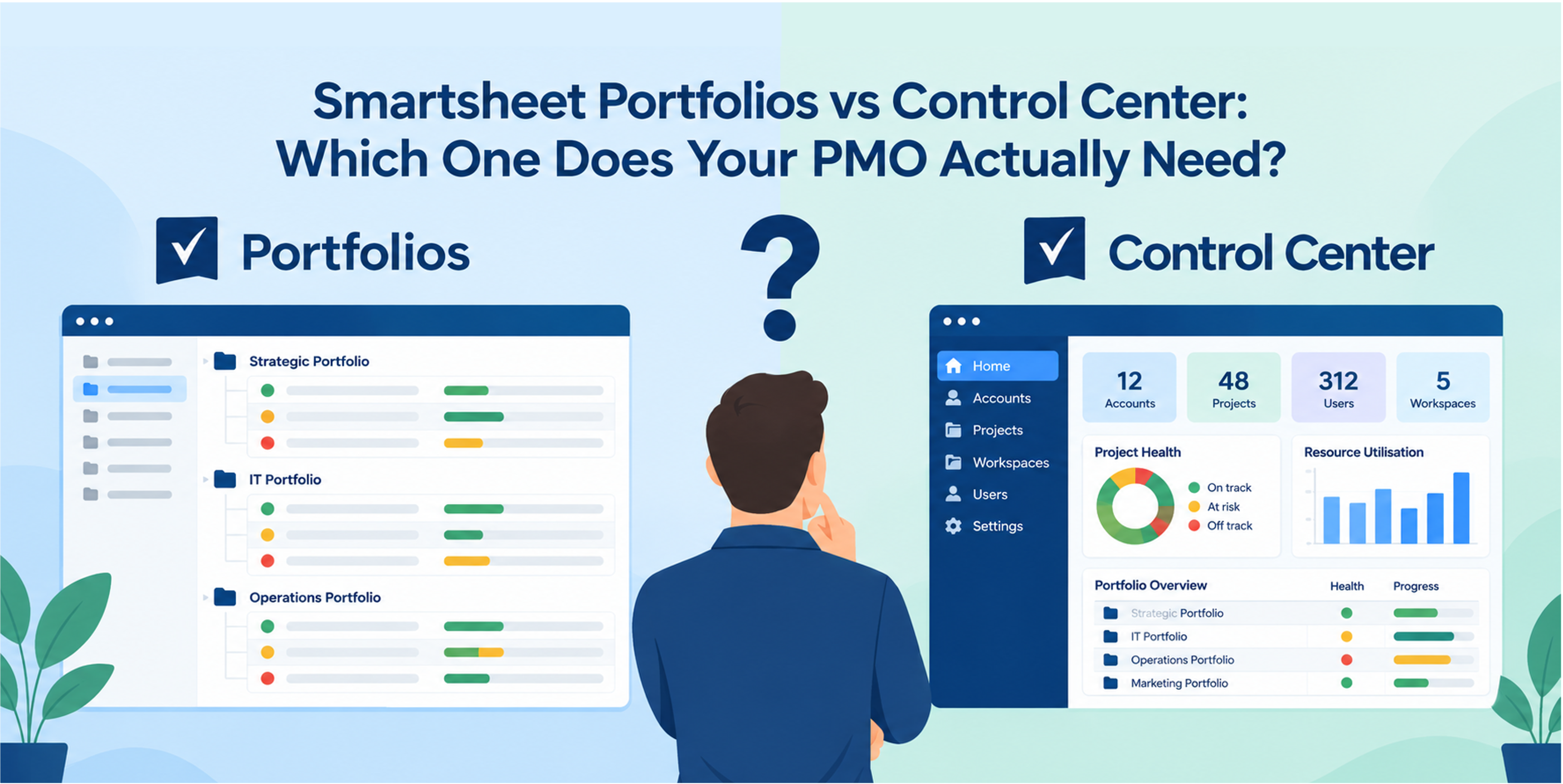
Smartsheet now gives you two native ways to fix this: Portfolios, the newer capability released in 2026, and Control Center, the long-standing premium app. They solve the same core problem, which is standardised project creation with visibility across projects. They are built for very different levels of complexity.
This article explains how they differ, so you can pick the right one before you invest weeks (or budget!) in setup.
The short answer
Portfolios is the lightweight option for team and department level work. Control Center is the governance engine for large, complex programmes.
Smartsheet's own guidance points the same way. It recommends Portfolios for teams managing up to 100 projects who want cross-project visibility without heavy setup. It positions Control Center for organisations running complex programmes that need governance, change management and multi-tier visibility.
Side by side
| Portfolios | Control Center | |
|---|---|---|
| Licensing | Included in Enterprise plans, no extra licence | Premium add-on, or included with Advanced Work Management |
| Best for | Team or department initiatives, small or informal PMOs | Enterprise programmes with formal governance |
| Intake | Built-in intake form and project list | Intake sheets attached to a blueprint |
| Templates | A project template, which can be built from scratch or based on an existing workspace | Blueprints made of multiple templates, configured in the blueprint builder |
| Project creation | Set a request to active and the project is provisioned | Manual provisioning from the console, or automated provisioning when a request is approved |
| Rollup | Built-in portfolio dashboard | Aggregated reporting across programmes, with tiered visibility |
| Linked data | Dashboard data comes from the project list. No profile data or linked summary sheet is documented | Profile data is cell-linked from intake to each project, then from each project to the blueprint summary sheet |
| Change management | No global update | Global updates push template changes to new and existing projects |
| Archiving | Not archival (yet) | Freeze, store and report on historical projects |
| Scale | Recommended up to around 100 projects | Up to 5,000 active projects per blueprint on the add-on, with enterprise tiers up to 20,000 for Advance customers |
| Setup effort | Low, it arrives ready to use | High, it needs proper design |
What you get with Portfolios
Every new portfolio comes with an intake form, a project list, a standard template and a portfolio dashboard. You define a project template once, and each project you create gets its own workspace with the sheets, dashboards and reports your team needs.
A few practical details are worth knowing:
- List view is the control point. The project list uses a view built specifically for Portfolios. It is the only place where you can provision, delete and share projects. Grid, Gantt and Card views are not supported on the project list, although you can switch to table view to see all columns.
- Intake is native. You can build a form on the project list itself, then approve, provision and share projects from the same place.
- AI access. Smartsheet states that you can use its MCP server with AI assistants to query the project list and portfolio reports, for example to ask about overdue tasks or risks.
For an operations lead, a PMO of one or a department running product launches, onboarding or IT requests, this is a big step forward from copying sheets by hand.
What you get with Control Center
Control Center was built for a different scale of problem. Its central idea is the blueprint, which defines which templates make up a project type. From a central console you can create approved projects, and with auto-provisioning you can have them created as soon as an intake row is marked as approved.
The features that set it apart are the ones that matter once you have hundreds of live projects:
- Global updates. You can deploy changes from the console to new and existing projects. This is the feature that stops a template change from becoming a manual job across hundreds of workspaces.
- Archiving. Completed projects can be frozen, stored and reported on for trend analysis and compliance.
- Resource Management connection. Control Center can link to resource plans so you can build the right team and forecast demand.
- Programme structure. A programme can hold multiple blueprints, with a primary lead and up to five additional leads.
The trade-off is effort. Smartsheet itself describes Control Center as powerful but complex. A blueprint needs well-designed intake sheets, profile data, templates and reporting before it pays off. There are also throughput limits to plan around. Smartsheet's published limits list global updates at 30 projects per hour and archiving at 10 projects per hour for Control Center without Portfolio WorkApps, so large rollouts need scheduling.
Linked data: the feature that decides it for many teams
The biggest practical difference is not on the feature list, because it sits in how data moves between sheets.
In Control Center, every project carries profile data. These are standardised fields held in a Summary section at the top of each project sheet, such as budget, due date, sponsor and status. They are connected in two directions:
- Intake to project. Each profile data field can be set to cell link back to the intake sheet. Change a value on intake and it updates on the project sheet. If you would rather capture the value once, a One Time Write option copies it at provisioning with no link.
- Project to summary sheet. The same profile data is cell-linked to matching columns in the blueprint summary sheet. Every new project is added to that summary automatically, so portfolio reports and dashboards pick up new work without anyone touching them.
This matters for three reasons. First, the intake sheet can act as the source of truth, so people cannot drift away from the approved budget or end date without it being visible. Second, reporting stays current because it reads from the projects themselves, not from a sheet someone updates by hand. Third, there is a repair route. If a link or row is deleted by accident, the Update Reporting action rebuilds the connection, and Global Updates can add new profile data fields and their links to projects that already exist.
Portfolios takes a simpler approach. Its dashboard draws on the project list, and I found no documentation describing profile data, a linked summary sheet, or links running from project items back to the list. For a team that is happy to maintain a few fields on the list, that is fine. For a PMO that needs reporting it can trust without chasing project managers, it is a real gap. Confirm it in your own account before you decide, because the product is new and its documentation is still growing.
That said, cell links are also the price of admission. They only work if the templates are built to the rules, and Smartsheet warns against moving projects between intake sheets or deleting intake rows, because either can break the links. Control Center gives you integrity, and in return it asks for discipline.
How to choose
Ask these questions in order:
- Do you need to change templates after projects are live? If yes, and you have many projects, Control Center's global update is the deciding feature.
- Do you have formal governance? Stage gates, multi-tier approvals and executive reporting across programmes point to Control Center.
- How many projects will you run? Under roughly 100, with one team owning the process, Portfolios is likely enough.
- Do you already have Control Center? If it is included through Advanced Work Management, the licence argument disappears, and the real question becomes whether you have the capacity to design and maintain blueprints.
- Is this for one team or the whole organisation? Portfolios suits a team that wants to move fast. Control Center suits an organisation that needs one standard across many teams.
A sensible path for growing teams
These are not mutually exclusive stages, but many teams will naturally start light. Begin with Portfolios to standardise intake and project creation, and learn what your template really needs to contain. If you outgrow it, because governance, bulk change or scale becomes the problem, the template thinking you did carries over into a Control Center blueprint design.
The mistake I see most often
Teams choose the tool by feature list and skip the process design. Both products reward the same groundwork: a clear intake process, a template people actually use, and consistent profile data so reporting rolls up cleanly. A well-designed Portfolio will outperform a badly designed Control Center programme every time.
Not sure which fits?
If you are weighing the two and want a second opinion before you commit, I can review your current setup and recommend an approach. Get in touch via the contact form.